How to change my password
How to reset your Strike Graph password from the login page, and what to do if you use SSO
Written By Micah Spieler
All password resets are handled through the login page.
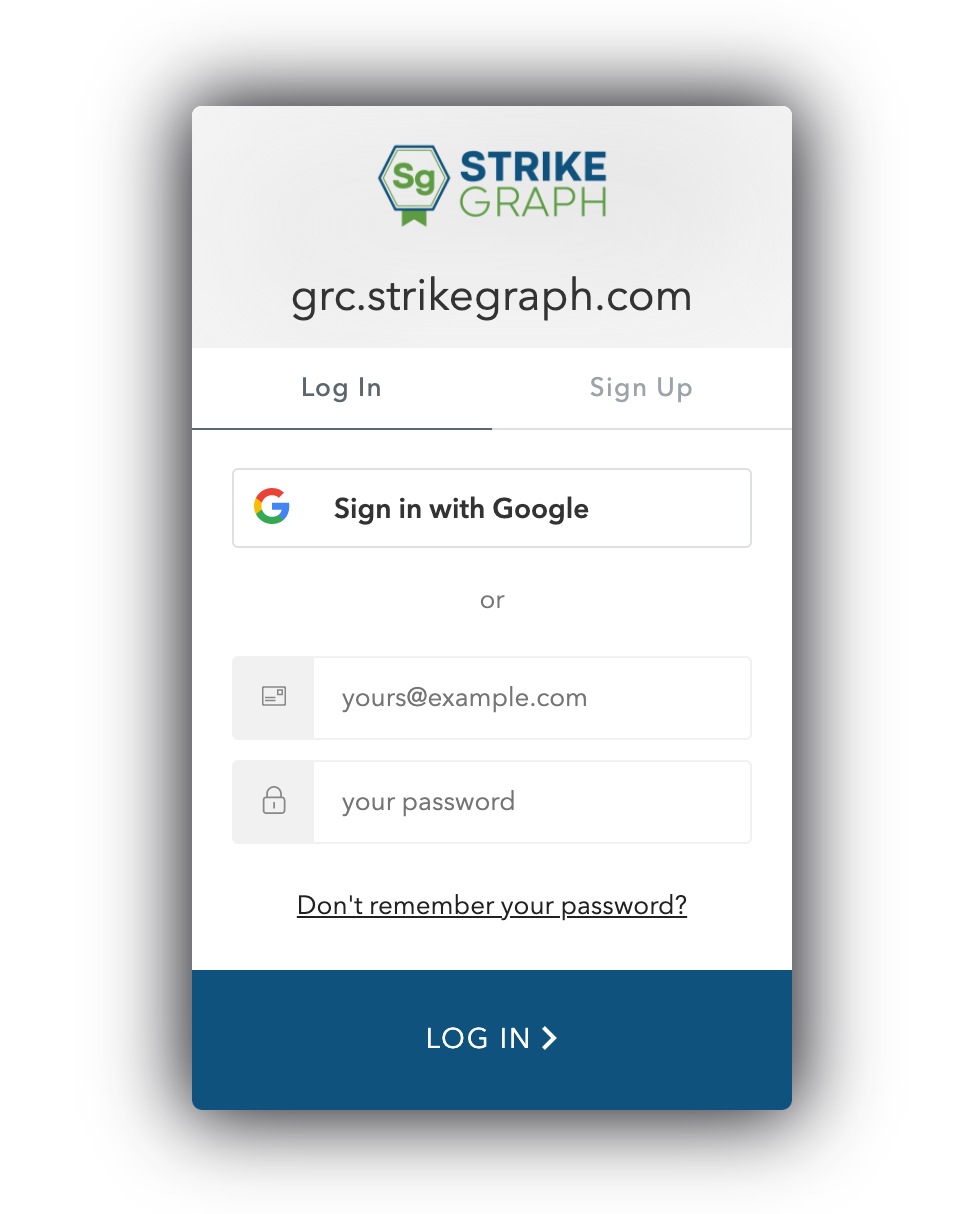
To reset your password:
If you are currently logged into Strike Graph, log out by clicking the logout icon in the bottom-left corner of the sidebar (the arrow pointing out of a door).
On the login screen, click the "Don't remember your password?" link below the password field.
Enter the email address associated with your Strike Graph account and submit the form.
Check your inbox for an email from Strike Graph with the subject line "Change Your Password." The email contains a one-time link that expires after a few hours.
Click the link in the email and follow the prompts to set a new password.
Once your new password is saved, you can return to the Strike Graph login page and sign in. We recommend storing your new password in a password manager.
SSO users
If your organization uses Single Sign-On (SSO/SAML) to access Strike Graph, your password is managed by your company's identity provider (such as Okta, Azure AD, or Google Workspace). The "Don't remember your password?" link on the Strike Graph login page will not apply to you. Contact your IT administrator or use your identity provider's password reset process instead.
Troubleshooting
If you do not receive the password reset email within a few minutes, check your spam or junk folder. If the email still does not arrive, confirm that you are entering the same email address that was used when your Strike Graph account was created. If you continue to have trouble, reach out to our support team through the in-app chat.
Questions?
Reach out through our chat feature for real-time Customer Success support 8 am - 5 pm PT Monday through Friday.
Was this helpful?