Risk ownership and scoring
Learn your responsibilities as a risk owner
Written By Micah
I have been assigned ownership of a risk item, what now?
As a risk owner it is your responsibility to score the inherent risk, select a treatment plan, activate controls to help mitigate the risk, and then score the residual risk that remains.
Determine if the risk is applicable to your organization
The risks identified within Strike Graph are applicable to most businesses, but it is possible that some risks will not apply to your organization due to the nature of your business. For example, risks relating to Availability will not be applicable to a consulting firm that does not host any customer data. Risks can be designated as "Inactive" by clicking the Edit button near the risk title.
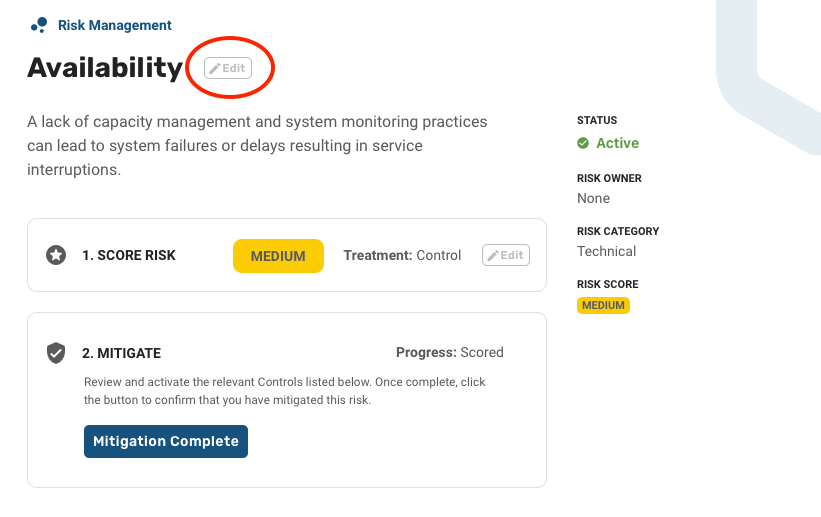
Assign likelihood and impact scores
If a risk is applicable to your organization, the next step is to assign likelihood and impact scores. Score the risk as it stands before your controls are taken into account. This is called inherent risk, and it is step 1 on the risk detail page.
Scoring inherent risk first gives you a baseline. Once you have mitigated the risk with controls, you score it a second time to capture the residual risk that remains, and the difference between the two scores shows what your controls actually accomplished.
Scoring a risk involves assigning impact and likelihood values to create a combined risk score and then assigning a treatment.
Impact: If the risk were to occur how would it impact your organization?
Likelihood: What is the likelihood that a risk would occur?
Combined score: The single score Strike Graph derives from your likelihood and impact ratings. How the two combine depends on your workspace’s risk scoring methodology. Use this value to assess your treatment and mitigation strategy.
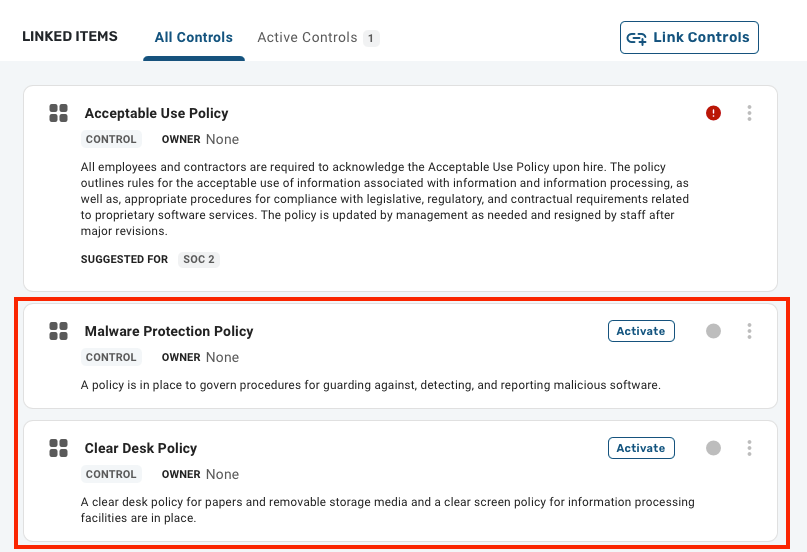
For example, in the screenshots below, the risk Acceptable Use of Company Assets has a suggested control Acceptable Use Policy. These "suggested controls" essentially outline the controls that will most likely be required for SOC 2 compliance, so you will see them listed alongside the risk. Score the inherent risk without assuming those controls are in place; you will account for them when you score the residual risk in step 3.
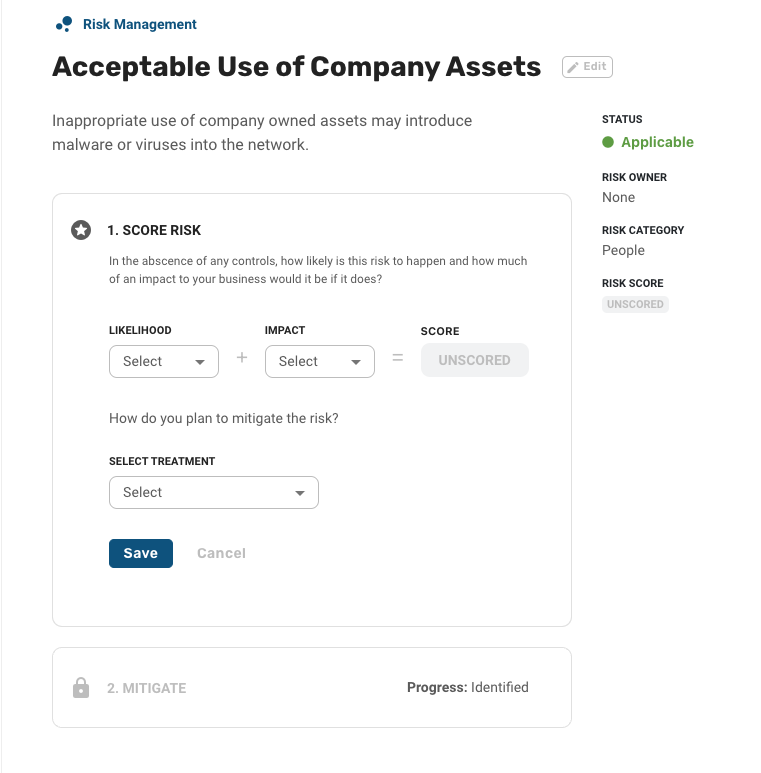
The ratings available to you depend on your workspace’s risk scoring methodology. The Basic methodology offers Low, Moderate, and High. The Advanced and Custom methodologies add Very Low and Very High, and under Custom your Manager may have renamed these ratings to match your organization’s own risk management policy. See Risk scoring methodologies and custom risk scales for the full comparison.
The tables below offer some guidance on how to assign the three shared ratings. More guidance can be found within our Risk Management Policy template.
Impact:
Likelihood:
Select a treatment plan
After you've scored the risk, the next step is to select a treatment plan. Risk treatment refers to how your organization plans to address the risk. Your organization will use controls to reduce the impact and likelihood of a risk. Controls are mapped to compliance standard criteria.
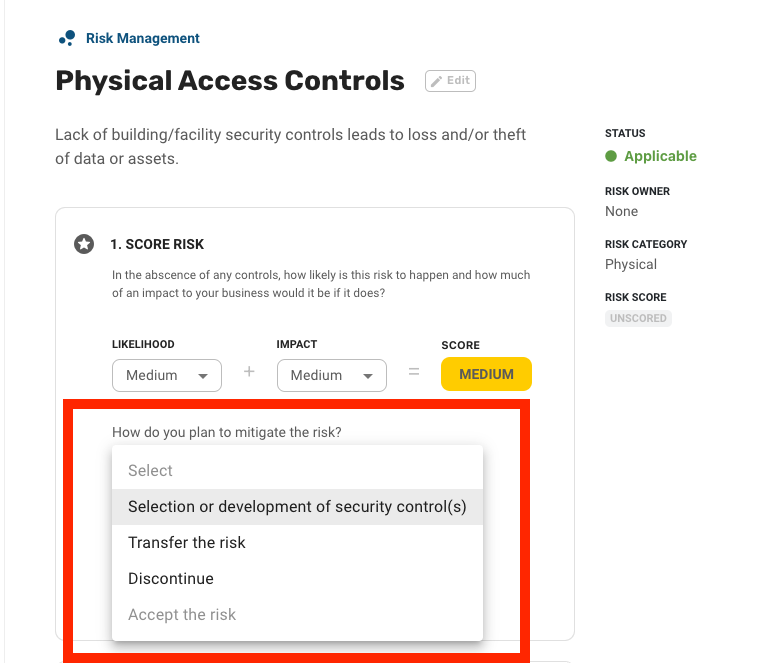
The possible options for treating the risk are:
Selection or development of security controls: This will be by far the most common risk treatment. It is essentially saying that in order to reduce or mitigate the risk identified your organization will implement, or has already implemented a control.
Transfer the risk: This treatment is appropriate if you are outsourcing the process that the risk relates to. For example, if you are cloud-hosted, your hosting provider is responsible for managing the physical and environmental risks to your business on your behalf. In this scenario, it is appropriate to transfer the risks related to Physical Access Controls and Environment.
Discontinue: This treatment option will almost never be used, it essentially says that you will halt business activities that generate the identified risk.
Accept the risk: This treatment is only available for risks you've scored as low for both likelihood and impact. Accepting the risk is essentially saying that you believe the risk is low enough that implementing additional controls is not necessary.
Activate additional controls to mitigate the risk
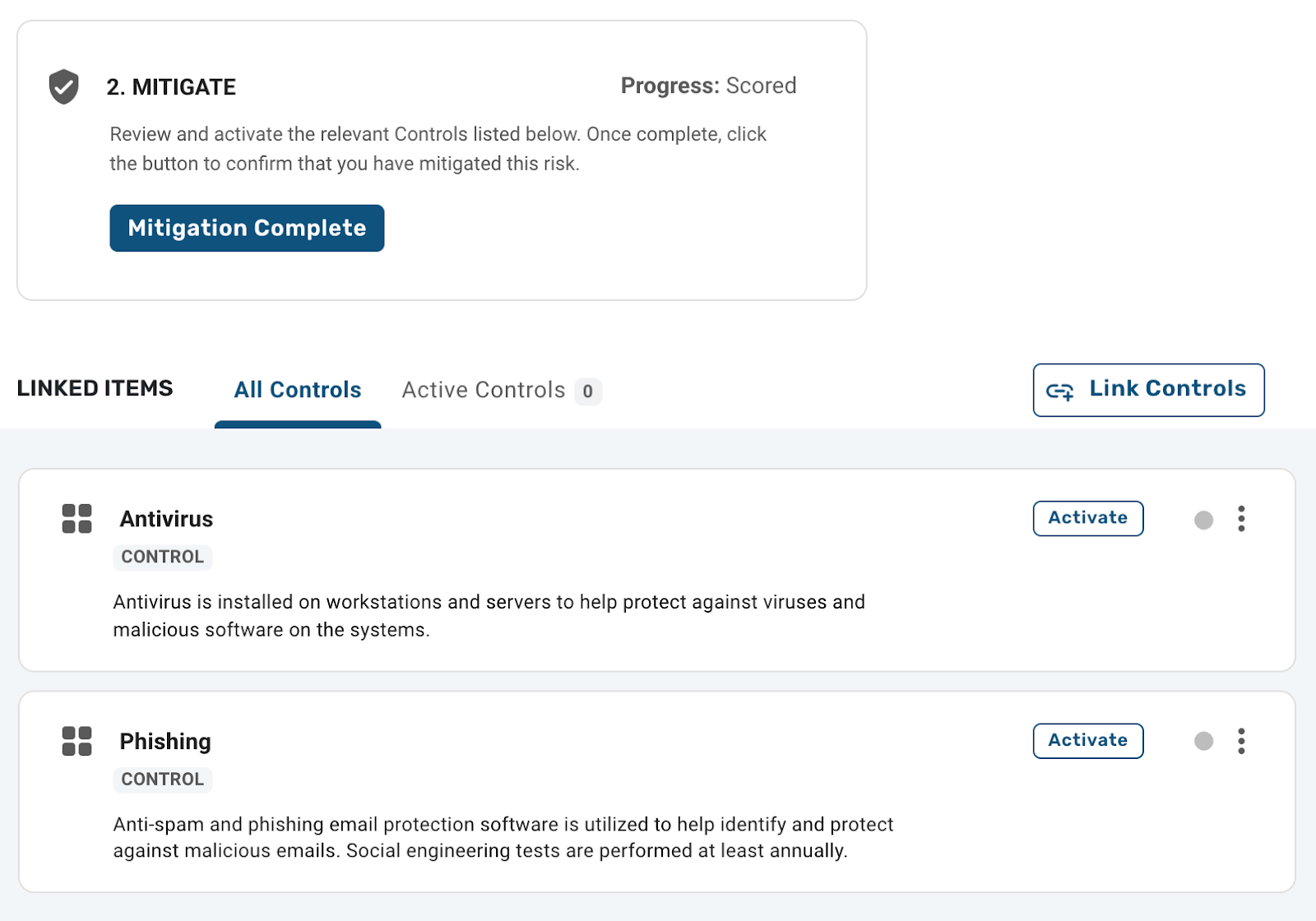
Once you have scored a risk and assigned a treatment plan, the last step is to activate additional controls, depending on the risk level. Strike Graph comes pre-loaded with hundreds of common controls that can be used to mitigate risks. You can use the "Link Controls" button to link new controls to cover the risk or review the suggested controls and activate any that are relevant to your business profile. As mentioned above, our suggested controls will already be activated for each risk identified.
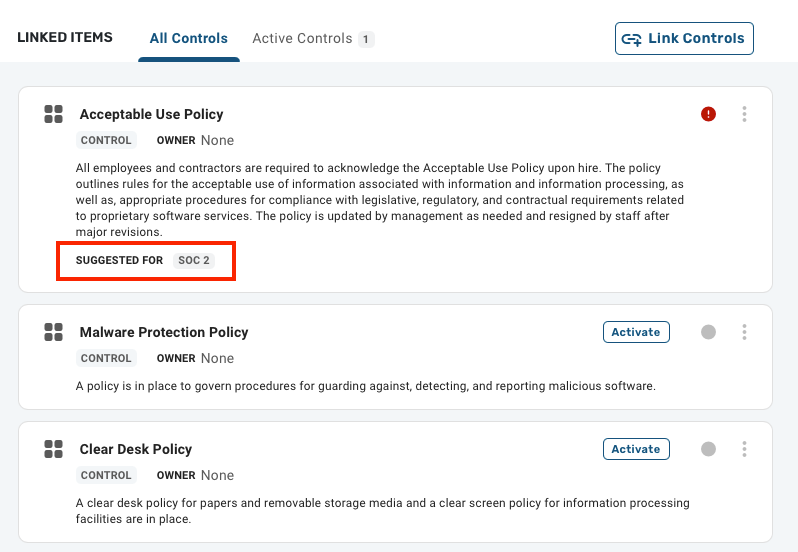
Going back to our example using the Acceptable Use of Company Assets risk above, if you scored that risk as "High" even with an Acceptable Use Policy in place, then you may want to implement additional controls, like a Malware Protection Policy, or Clear Desk Policy to help mitigate the risk.
Once you have completed the review and activated controls to mitigate the risk, press the "Mitigation Complete" button to change the risk progress to mitigated.
Score the residual risk
After a risk is marked as mitigated, step 3 on the risk detail page unlocks so you can score the residual risk: the risk that remains now that your controls are in place. Until the risk reaches a mitigated state, this step stays locked and reads "Available once this risk is mitigated."
Residual scoring works exactly like inherent scoring. Choose a Likelihood and an Impact rating, and Strike Graph derives the combined score using your workspace’s scoring methodology. The prompt asks a slightly different question: with your controls in place, how likely is the risk to happen now, and what impact would it have if it did?
Both scores are kept side by side. The risk detail sidebar shows an inherent risk score and a residual risk score, so you and your auditors can see the starting point, the controls you implemented, and the result.
A residual score that has barely moved from the inherent score is useful information. It suggests the controls you activated are not doing much for that particular risk, and it may be worth linking additional controls and re-scoring.
You can update either score at any time by clicking Edit on that step. Risk scores change as your control environment, vendors, and business change, so revisit them whenever you run a risk assessment.
Residual risk scoring is enabled per organization. If you do not see a step 3 on your risk detail pages and you would like to score residual risk, reach out to your Customer Success Manager or contact support through the in-app messenger.
Was this helpful?