Remove or deactivate a user
Remember to offboard a user after they leave your organization
Written By Micah
When employees leave your organization or are no longer participating in the compliance program, you may want to also remove their access to the Strike Graph platform. You have two options: downgrade the user's permissions (Contributors only have edit access to items that they are assigned to), or remove the user from Strike Graph.
Strike Graph also allows you to bulk reassign ownership of platform items as described below.
How to remove a user from Strike Graph
Managers can remove users (including other Managers) from Strike Graph from the Team Settings page.
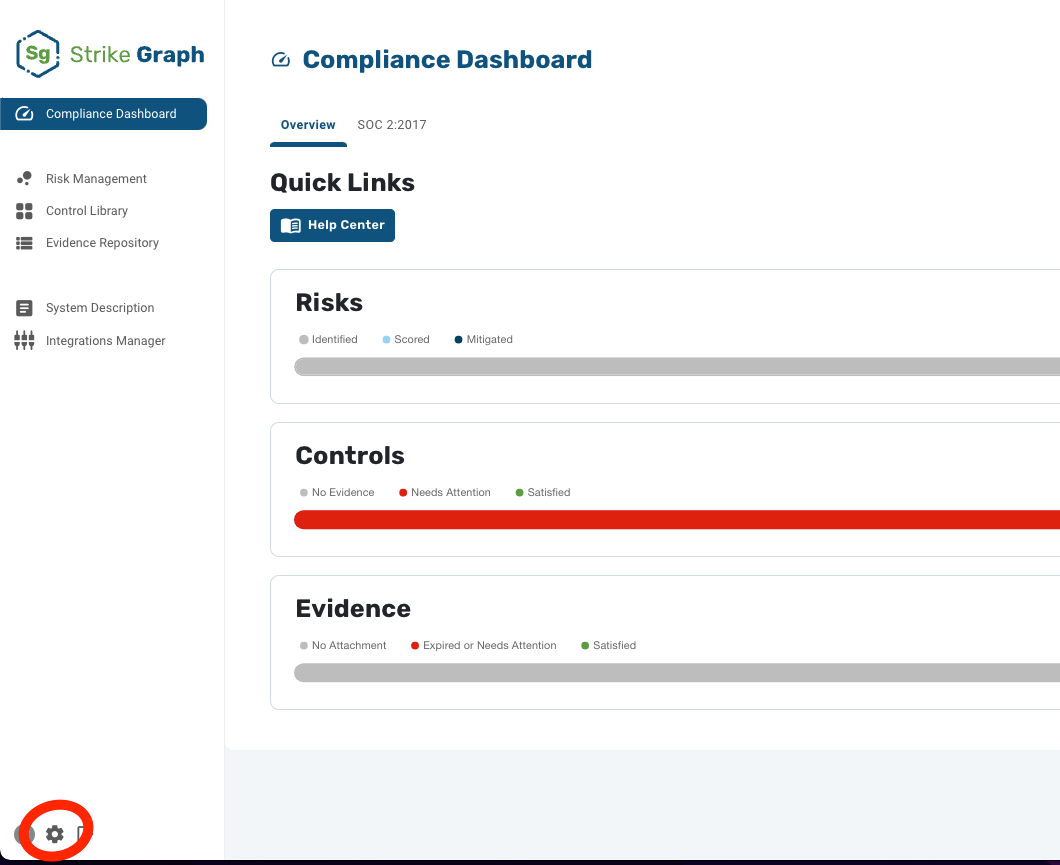
Click the gear icon on the bottom left of the screen (see image below) to access the Team Settings page
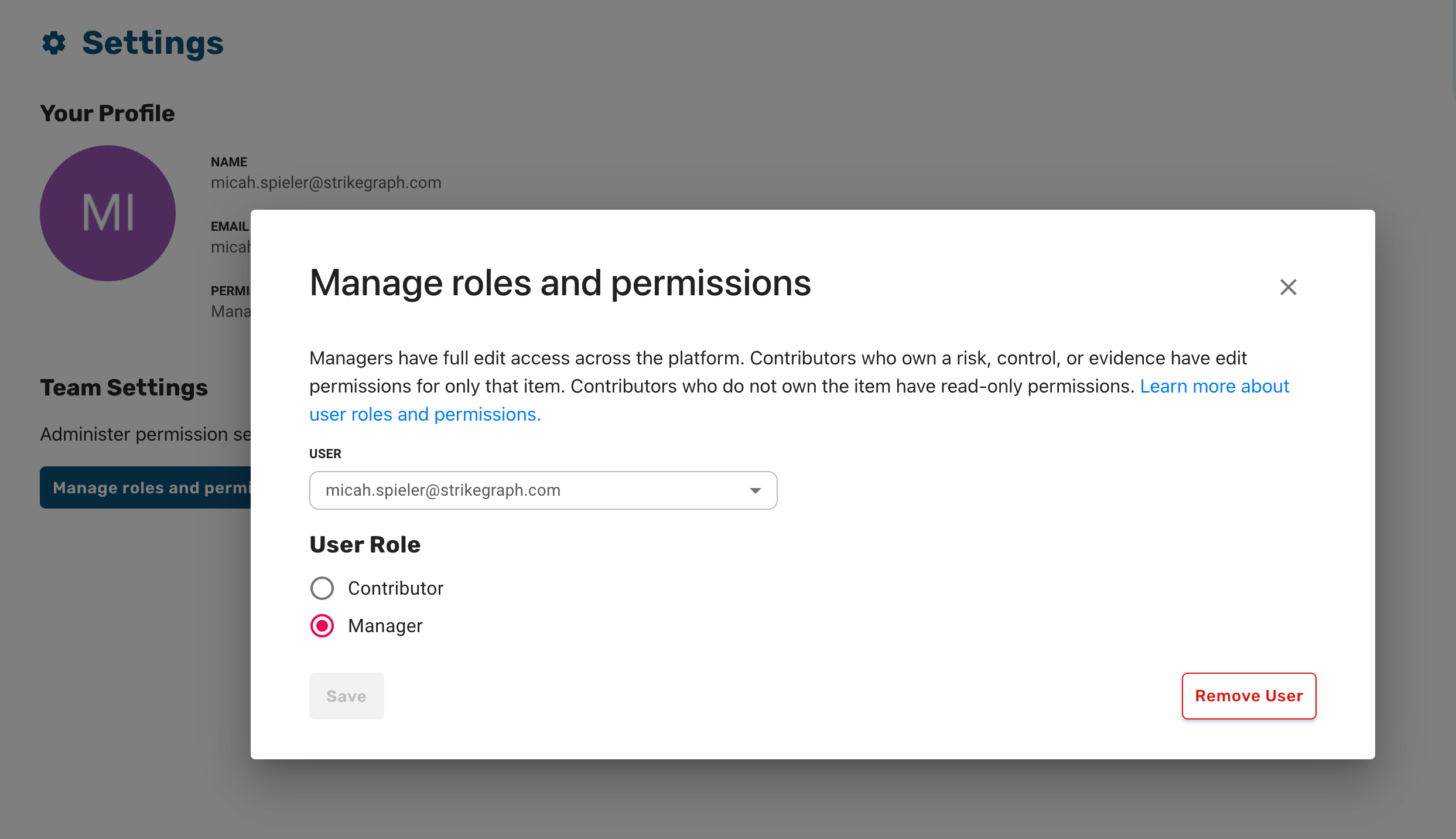
Click on the "Manage roles and permissions" button to open the permissions modal
Select the user you would like to remove from the dropdown list
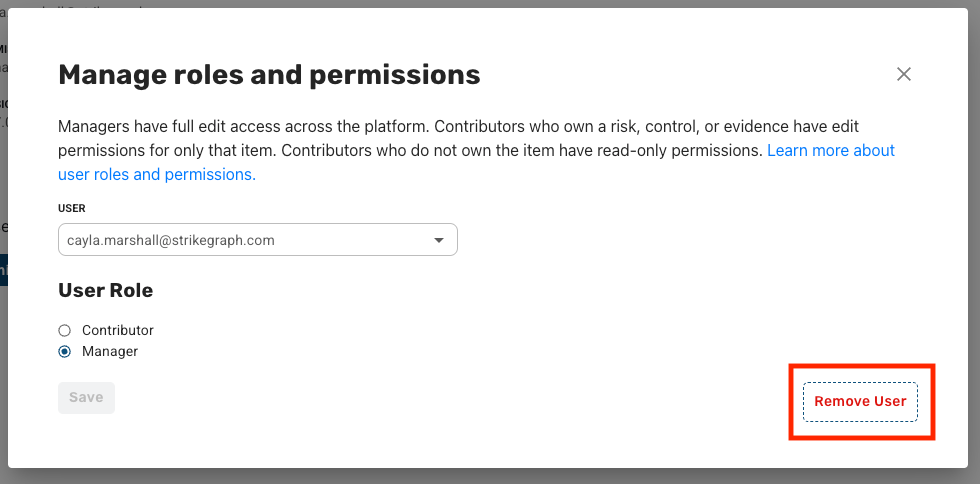
Click the "Remove user" button in the bottom right of the modal
Confirm your decision
When a user is removed, they will be deactivated from Strike Graph and unable to log in again. In addition, deactivating a user also:
Removes any ownership assignments they have for Risks, Controls, or Evidence (these items are default back to no owner)
Removes any user roles or permissions assigned to the user
Removes any user-specific integrations associated with that user
We do not delete any Control, Risk or Evidence items created by the user, nor do we delete any Evidence Attachments that have been uploaded by the user.
Please note that deactivating a user may interrupt automated collection or flip some Controls or Evidence into the "needs attention" status. It's smart to review active items after an owner has been deactivated.
How to reassign ownership
When a user is deactivated from the platform, you have the option to bulk reassign ownership of platform items in one of two ways.
Option 1: Bulk reassign at deactivation point
After selecting "Remove User" within the Manage Roles and Permissions modal, the platform will ask if you'd like to reassign ownership to a new user.
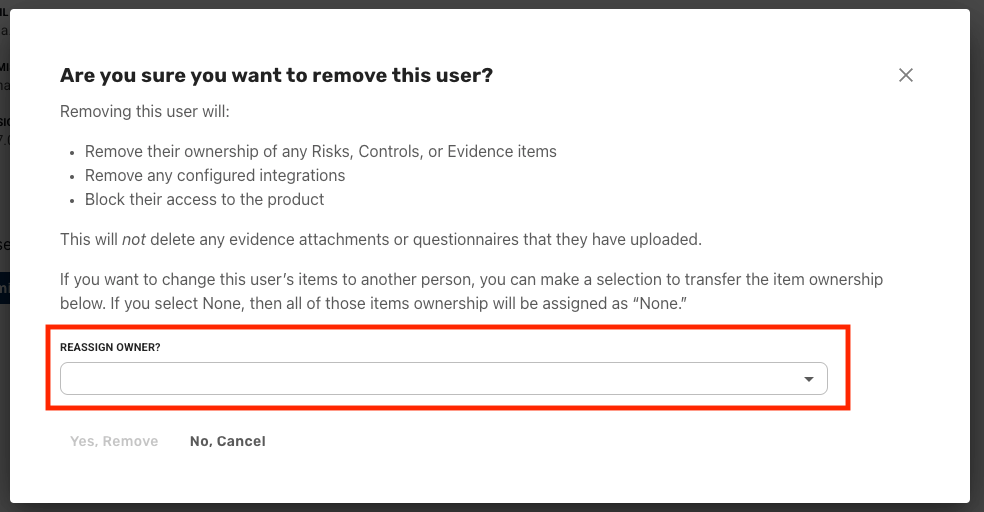
This option will reassign all controls and evidence items to the newly selected user. Or, you can choose "None" if you'd like to reassign items individually.
Option 1: Bulk reassign after deactivation
If you've already deactivated a user, you can also use Bulk Editing to reassign ownership.
How to reactivate a user
If you need to reactivate a user, send us a message either through the Chat Feature within the platform, or send an email to support@strikegraph.com. If you are not the primary account holder, we may follow up with questions to confirm the reactivation request.
Please note: reactivating a user will not restore their ownership assignments or third-party integration configurations. These are permanently removed and cannot be restored.
Was this helpful?