How to: Automatically post Jira issues as evidence
Using Strike Graph Evidence API + Jira Automations to automate change-management related evidence collection
Written By Micah
Automatically post Jira issues as evidence
If you use Jira to track recurring compliance work like quarterly access reviews, change approvals, incident postmortems, or vendor reviews, you may be exporting or screenshotting tickets and uploading them to your evidence repository by hand. This guide sets up a Jira automation rule that removes that step. When an issue reaches a status you define, Jira posts a JSON record of the ticket directly to a Strike Graph evidence item.
This is just an example to demonstrate how Jira automations can work in tandem with Evidence API, but the triggers, content, and workflows can all be customized for your unique usecases.
How authentication works with Jira automation
Jira's Send web request action doesn't have a dedicated OAuth flow, but it does support custom headers, including Authorization. Header values can be marked Hidden so they're masked in the rule and in its audit log.
For security purposes, the Evidence API uses machine-to-machine credentials and tokens expire after two hours, so a hardcoded bearer token stops working the same day you create it.
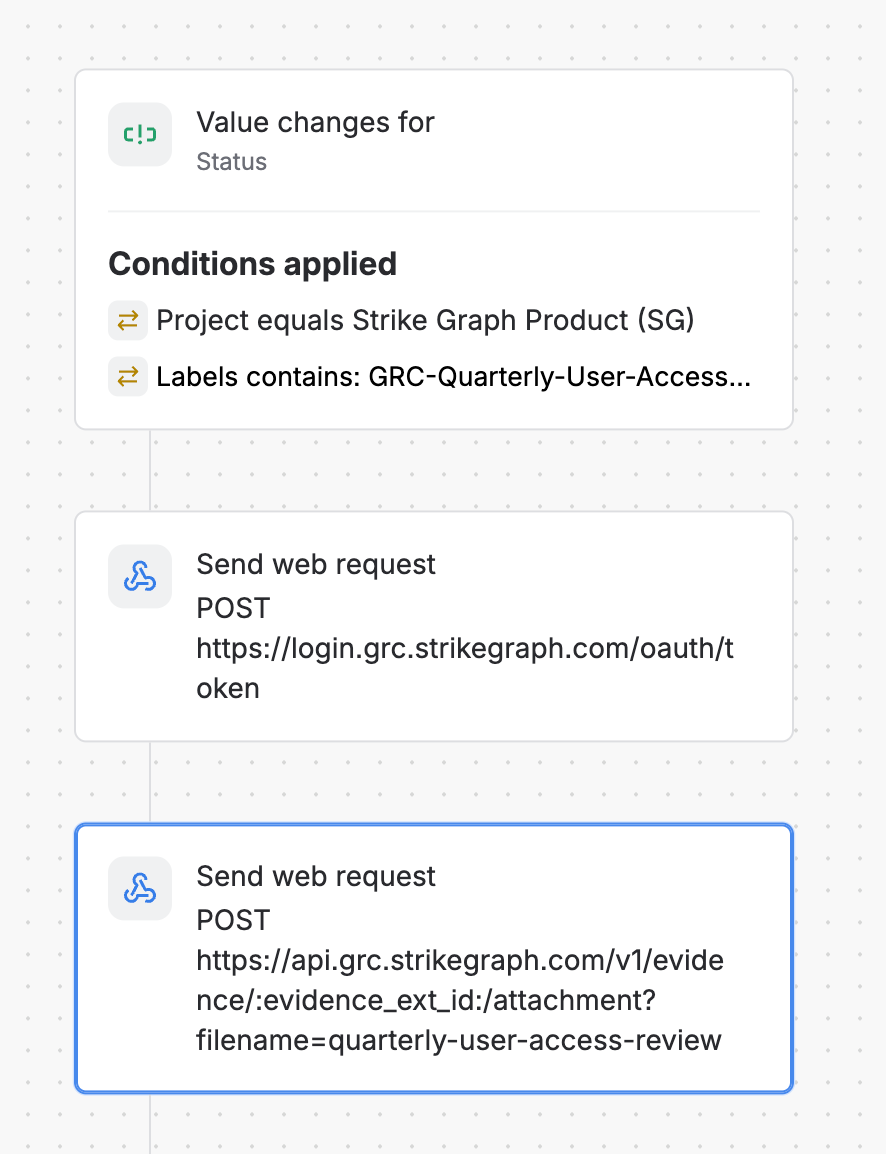
The solution is to chain two Send web request actions together in a single rule. The first requests a fresh token, and the second uses that token to post the evidence. Because the token is requested every time the rule runs, expiration is no longer a concern.
Prerequisites for the Jira evidence automation
Evidence API access enabled on your account. Access depends on your subscription plan. Contact your Customer Success Manager if you don't see the Public Evidence API card in Integration Manager.
Evidence API credentials: Client ID, Client Secret, Auth0 domain, and audience (
urn:sg:public-api), generated from Integration Manager. See Evidence API for setup. This guide assumes you've already generated credentials. Save the Client Secret when it's generated, because it can't be retrieved again.The API route for your target evidence item. Copy it from the API Route button on the evidence item's detail page. The route contains the evidence item's external ID, which stays the same across updates.
Permission to create automation rules in your Jira Cloud instance.
Set up the trigger and conditions in Jira
This example uses a label to limit the rule to one recurring workflow: quarterly user access review tickets labeled GRC-Quarterly-User-Access-Review. Any field Jira can filter on works the same way, including issue type, component, assignee, or a custom field. What matters is that the rule is scoped to something specific. An unscoped rule fires on every ticket in the project, which sends a high volume of requests to the Evidence API and fills the evidence item with attachments you don't need.
Trigger: Value changes for → Status
Conditions:
Project equals your target project
Labels contains your chosen label, or whichever attribute you're using instead
Action 1: Request an Evidence API access token
Body:
{ "grant_type": "client_credentials", "client_id": "YOUR_CLIENT_ID", "client_secret": "YOUR_CLIENT_SECRET", "audience": "urn:sg:public-api"}Be sure to check Delay execution until response received. Without it, the rule moves to the next action before the response arrives and the token smart value resolves to an empty string. This is the most common point of failure in this setup.
Action 2: Post the Jira issue data as evidence
Headers:
The body can be any JSON, up to 10 MB. Jira smart values let you capture the state of the ticket:
{ "jira_issue": "{{issue.key}}", "summary": "{{issue.summary}}", "status": "{{issue.status.name}}", "assignee": "{{issue.assignee.displayName}}", "resolved_at": "{{now}}", "url": "https://your-domain.atlassian.net/browse/{{issue.key}}"}Optionally, append ?filename=quarterly-user-access-review to the URL to set a custom filename instead of the default api-attachment-[date].json. Filenames accept letters, numbers, dashes, and underscores, and the .json extension is added automatically. Custom filenames are worth setting up as soon as more than one automation writes to the same evidence item, so that you can tell the attachments apart later.
Save the rule. Setting it to private limits who can see and run it, which is covered in more detail in the security section below.
Troubleshooting the Jira evidence automation
The token resolves to an empty value. Check two things: the Delay execution until response received checkbox on Action 1, and the spelling of the smart value. The correct value is {{webhookResponse.body.access_token}}, not webResponse. Both names appear in Atlassian's documentation for different products, and the wrong one fails without an error message.
Smart value extraction fails even though the response body looks correct. {{webhookResponse.body.<key>}} only works against a JSON response. If the endpoint returns text/html, the extraction returns an empty value no matter what the body contains. The Auth0 token endpoint returns JSON, so this shouldn't affect the setup above, but it's useful to know if you adapt this pattern for another API.
Debugging the token request. Add a Log action between the two web requests and log {{webhookResponse.status}} and {{webhookResponse.body}}. Remove the Log action before the rule goes live, because logging the full body writes the access token into the audit log.
Rate limits. The Evidence API allows 50 requests per minute per client ID. A rule tied to a single status transition stays well under that limit, but a rule that triggers across many issues at once may reach it. A 429 response includes a Retry-After header, and Jira automation does not retry on its own.
No retry logic. If either request fails, the rule fails and the evidence doesn't arrive. There's no queue and no backoff. For anything audit-critical, check periodically that the automation is still running.
Common error responses:
A successful post returns 201 Created along with a requestId and an attachmentUrl.
Security considerations for storing credentials in a Jira rule
The Client Secret sits in the request body of Action 1, and Jira only supports hiding header values, not body fields. That's the main limitation of this approach, and it's worth understanding before you build the rule:
Set the rule to private. This restricts visibility and execution to the rule owner, but it isn't absolute. Jira administrators generally retain the ability to inspect or take over automation rules, and rule configuration can appear in exports and audit tooling. Private reduces exposure rather than eliminating it.
Rotate the Client Secret if the rule is shared or exported, or if its owner leaves the team.
If storing a secret in a rule body isn't acceptable for your organization, there are two alternatives:
A thin proxy. A small serverless function such as a Cloudflare Worker or AWS Lambda holds the real credentials and exposes a single endpoint protected by a static shared secret, which Jira can send as a Hidden header. This approach also allows for retry handling on
429responses and for proper logging.Use the built in Jira integration. The Jira integration can collect a ticket from a static ID, JQL, or population via Jira Filters. Learn more about the Jira integration.
The two-action chain described above is a reasonable amount of setup for one or two evidence flows. Beyond that, the proxy or Script Runner will be easier to maintain.
Was this helpful?