Risk assessment basics
Learn the basic principles of a risk assessment and how to manage one within the Strike Graph platform
Written By Micah
Understanding and managing the risks to your business is an important component of any compliance program. Using Strike Graph's risk management feature will help you keep track of your risks and ensure that they are appropriately mitigated.
Strike Graph comes with a standard set of identified risks that cover the common risk areas of most businesses. Use these as a starting place for assessing risks to your business. You may edit the risk statements to better describe the risk to your organization.
A risk assessment should be performed at least annually but can be revised and revisited at any time. Opening up the risk assessment process to folks throughout the organization is the goal, but many companies start with just a leadership group.
A video demonstration of how to utilize Strike Graph's risk assessment tool can be found here.
Key terms
A risk is an event that has not yet happened that could impact a business objective. Risks are generally thought of as ‘negative’ events, but some risks may also lead to positive outcomes for an organization. In very simple terms, think: What could go wrong? The answer is the risk.
Risks are comprised of a threat that exploits a vulnerability of an asset. For example, "a key client no longer does business with the organization, thus leading to a loss of revenue" or "confidential product plans are inappropriately shared, resulting in the loss of client trust and legal issues."
Risks are scored by likelihood and impact within Strike Graph. (Some methodologies may introduce other factors, such as velocity, but we like to keep it simple.)
Likelihood answers the question: Could this happen?
Impact answers the question: How bad would it be?
Risk metadata:
Name: A name to internally identify the risk.
Description: Description of the risk. The risk description is editable, so tailor it to your organization.
Owner: The person responsible for the risk.
Category: Functional area of the business that defines the risk. Risk categories can be re-assigned.
Status: Active or Inactive; a risk is only inactive if it does not apply to your organization.
Progress: Risks move through the following progress steps (more details below):
Identified
Scored
Mitigated
Risk Assessment 101
It is logical to complete a risk assessment sometime during your organization’s “control implementation” stage, as completing a risk assessment itself performs a control. When going through a risk assessment for the first time, your organization should think of this as a method for scoring a baseline for your security program. Therefore, there is no “wrong” answer when scoring a risk. Rather, the monitoring of that risk is the compliance activity.
It’s important to note that risk scores are ever-changing; the changes are based on your organization's implementation of controls, business environment, product updates, new vendors, technology pivots, and everything else that happens in a typical year. Therefore, completing risk assessments on a regular basis is important. Doing so will allow you to understand your IT landscape better and appropriately scope your controls to cover only the areas that apply to your business.
Beginning a risk assessment for the first time
Click the “Risk Assessment” button on the Risk Management list table
Refer to the Risk Ownership and How to Score Risks article for detailed instructions on scoring risks.
If you need to step away from the risk assessment, the Risk Assessment button will start you back where you left off.
For each risk, you’ll be first asked to score the risk and assign a treatment.
After you have scored the risk, review the list of suggested controls. For risks with High or Medium scores, activate controls to mitigate the risk and align with your defined treatment. When you’re finished reviewing the controls, click the “Mitigation Complete” button.
Use the “Next Risk” button to move to the next risk that needs to be scored or mitigated.

Adding a custom risk
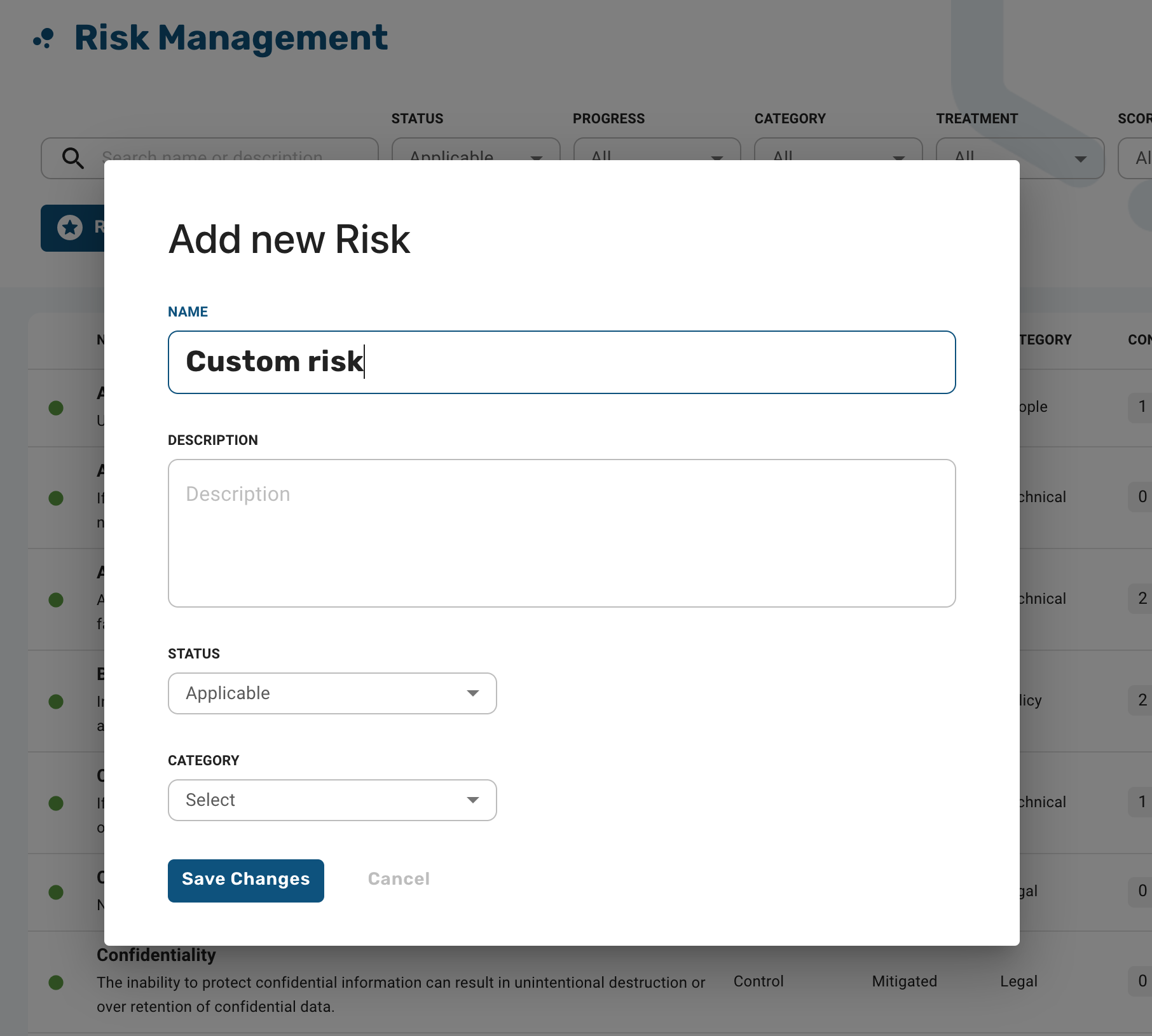
If you uncover a unique Risk to your business, you can add, score, mitigate and track that Risk in Strike Graph. Creating a risk is easy:
On the Risk Management list page, click "Add Risk"
Fill in the necessary details (Name, Description, and Category are all required)
Click Save
Now the Risk will appear in your Risk Management registry, and you can score, mitigate, and link Controls to the Risk.
Was this helpful?